What Level XML lets you do
Happy Wheels level XML lets you bring shared designs into the Level Editor without rebuilding every object by hand. It represents level objects and settings as structured text, making it useful for exchanging creations, studying how objects work, and importing generated artwork.
Also called LevelXML or Level Data, this text contains records for shapes, special items, joints, triggers, and other parts of a level. Each object can have multiple properties, so even a simple scene may produce a substantial amount of code. You do not need to understand every property to import a complete, working level.
The important distinction is between a playable level and its editable data. A level title, screenshot, or public play link does not itself contain the XML you can paste into the editor. Start with data from your own creation or XML that another creator has shared. This guide focuses on the browser game's editor.
Import and edit level data
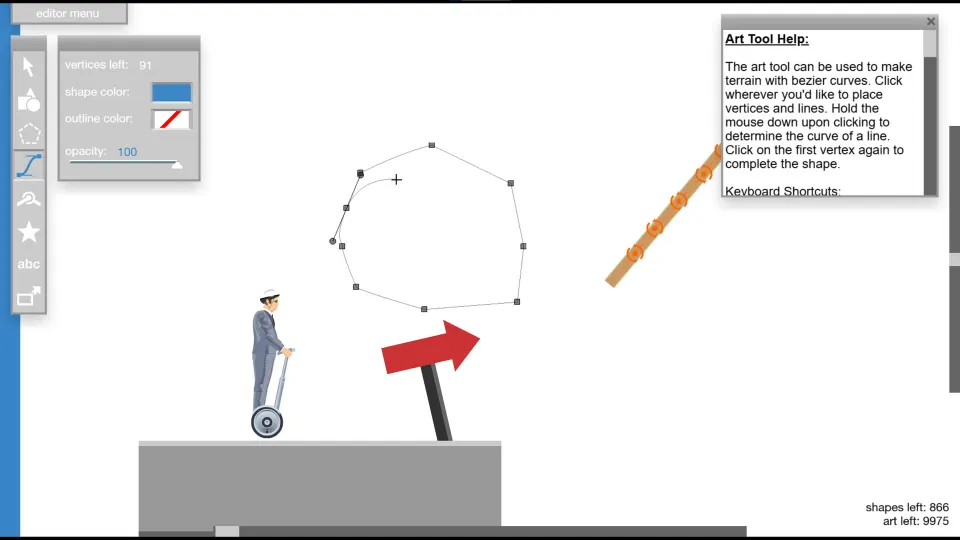
The basic workflow is to copy complete LevelXML text and paste it into the Level Editor's import level data box. The outer wrapper matters: the data needs an opening <levelXML> tag and a matching </levelXML> closing tag.
Use this sequence to keep mistakes easy to identify:
-
Keep an untouched copy. Preserve the original XML before changing values, especially when working with a large design.
-
Open the Level Editor. Use Happy Wheels at Totaljerkface.com. The site requires JavaScript for its functionality.
-
Copy the complete data. Include the opening and closing wrapper tags. Leave out webpage headings and surrounding explanatory text.
-
Paste into the import level data box. Make sure you copied the actual XML rather than a link to its location.
-
Inspect the imported scene. Check object placement, the starting character, and the background before making further changes.
-
Test the level. A successful import does not establish that every collision, joint, or moving object behaves as intended.
-
Change one thing at a time. Make a small edit, import or test again, and compare the result with your original.
For a first experiment, use a small level you already understand. Changing one object's position is easier to evaluate than modifying several unfamiliar properties across a complicated scene.
Older XML may lack settings introduced after it was generated. The Happy Wheels Wiki's LevelXML reference recommends loading and saving the data again when an expected setting is missing. Keep the original copy while doing this so you can compare the versions.
Read the XML structure
LevelXML organizes different kinds of level content into recognizable sections. Learning those sections helps you locate the right part of a document without treating every numbered property as interchangeable.
| XML component | What it represents |
|---|---|
<levelXML>...</levelXML> | The outer container for level data. |
<shapes> | Shape records, including geometric shapes, polygons, and art. |
<specials> | Special items placed in the level. |
<joints> | Joint data, including connections made with the Pin Joint tool. |
<triggers> | Trigger data associated with the Trigger tool. |
<![CDATA[...]]> | A section used to hold displayed text content. |
Text deserves particular attention. Its readable words appear inside a CDATA section, so they look different from the numbered attributes used by many objects. When editing a label, preserve the surrounding XML and CDATA markers.
The following fields provide a useful starting point. Their context matters: a numbered property in a shape record should not automatically be interpreted the same way in every special item.
| Field or attribute | Meaning |
|---|---|
Level x and y | The main character's starting coordinates. |
Level c | The selected main character. |
Level f | Whether the selected character is forced; t means true and f means false. |
Level h | Whether the character's vehicle is hidden. |
Level bg | Backdrop selection: 0 is blank, 1 is green hills, and 2 is city. |
Level bgc | Background color expressed as a decimal RGB value. |
Object p0 and p1 | The object's horizontal and vertical coordinates. |
Shape p2 and p3 | The shape's width and height. |
Shape t | Shape type: rectangle 0, circle 1, triangle 2, polygon 3, or art 4. |
Some values are adjusted during import. Object coordinates are truncated to two decimal places. Rectangle and circle dimensions are converted to integers and constrained to the documented range of 5 to 5,000.
Shape types also affect behavior. Changing an art object into a polygon can produce incorrect collision around concave portions. A visual outline and its physical behavior are therefore separate things to inspect after editing.
Fix import and display problems
When an import fails or produces an unexpected scene, work backward from the smallest change. First try the untouched XML, then compare it with the edited version.
| Problem | What to check |
|---|---|
| The data will not import | Confirm that the complete opening and closing levelXML tags are present and the text was not cut off. |
| A copied example will not load | Check whether it is only an object or section fragment rather than complete level data. |
| An expected setting is absent | Older XML may predate that setting; load and save the level again. |
| A shape disappears during import | Check its type value. Shape types outside the supported range are not imported. |
| The editor slows down after adding artwork | Image conversions can create many objects; try a smaller or simpler image. |
A wrapper is necessary, but adding wrapper tags to an arbitrary fragment does not establish that it contains everything needed for a working level. A rectangle example may explain one object while omitting the surrounding level information.
If an object appears but behaves differently, check what you changed. A shape-type edit can affect collision, while a position edit changes where the object sits. Test each adjustment separately.
Likewise, an absent attribute does not always indicate damaged data. The shape interaction attribute i, for example, appears for noninteractive shapes or art as i="f"; interactive shapes and polygons may omit it. Compare equivalent objects before adding a supposedly missing field.
Find shared designs and convert artwork
Creators have used Pastebin to distribute level data, while community pages and creator profiles can help you discover related projects. Look for an actual XML post or download associated with a creation, rather than assuming every listed level includes editable data.
For example, the random maker's profile lists “Level XML (Artwork),” dated September 27, 2014. Protoxon's profile lists “Props for Levels Xml,” dated May 18, 2021. These identify relevant creations, but the profile listings themselves are not XML documents.
The Happy Wheels levels archive also lists entries such as “LevelXML #4 [Ferris Wheel]” and “LevelXML #6 [Candyland].” Treat those names as discovery leads and inspect what each entry actually offers.
Image conversion is another use of LevelXML. Instead of placing every colored piece manually, a converter generates level objects from a picture.
| Project | Documented approach |
|---|---|
| Pixelsuft's Happy Wheels Picture | A GitHub project described as a website for converting pictures into Happy Wheels XML level data. |
| PeturDarri's image converter | A 2014 project initially using 5-by-5 rectangles, with a later version described as using 2-by-2 polygons. |
These approaches turn artwork into objects the editor can represent. More visual detail can mean more objects, and PeturDarri specifically reported that image size could cause substantial slowdown in both the editor and the game.
For a manageable first conversion:
- Choose a small image with a clear silhouette.
- Start with simple colors and limited fine detail.
- Import the artwork before building a complicated scene around it.
- Test performance during play as well as while editing.
- Keep your original level data before adding the generated objects.
FAQ
What does “happy wheels level xml” mean?
It means the structured text used to describe a Happy Wheels level. LevelXML and Level Data are alternative names for it. The Level Editor can read this text to reconstruct objects and settings.
Can I get XML from any public level link?
A public play link is not itself editable level data. Look for XML the creator has shared, or ask the creator for the particular design you need. Community discussion about historical import features does not establish a current method for extracting every published level.
Can I paste a single shape into the import box?
A shape record is only part of a level document. Do not assume that an isolated object example will import by itself. Use complete working level data as your starting point, then make carefully scoped changes within it.
Will an image converter preserve every detail?
Detail depends on how the converter represents the image and how many objects it generates. PeturDarri's documented versions used small rectangles and polygons. Higher detail can increase the editor's workload, so begin with a modest image and test the result.
Do these field descriptions apply unchanged to iOS?
Do not assume identical compatibility. The Happy Wheels Wiki documents iOS Level XML separately, including its own initial data and item entries such as a slow motion panel. Use documentation for the version you are editing before transferring or changing platform-specific data.