Choose the mobile app for touch controls
To play Happy Wheels on your phone, start with the official mobile app for iOS or Android. Its on-screen buttons let you navigate obstacle courses without a keyboard. Choosing the right version matters: a browser page that loads on your phone does not necessarily provide the controls you need to finish a level.
Happy Wheels is a physics-based obstacle game created by Jim Bonacci. You guide vulnerable riders through hazards, trying to reach the finish while managing momentum, balance, and often disastrous landings.
| Version | Mobile relevance | What to expect |
|---|---|---|
| Official iOS app | Available for iPhone and iPad | Touchscreen play; the App Store advertises more than 60 levels and a level editor |
| Official Android app | An official mobile port exists | Touchscreen gameplay with character-based obstacle courses |
| Totaljerkface browser version | The developer described mobile performance in 2020 | That announcement recommended a Bluetooth keyboard because on-screen controls were not yet included |
| Poki version | Listed as supporting desktop | Keyboard controls and 10 classic levels |
The official iOS listing identifies Jim Bonacci as the developer. The Happy Wheels Mobile wiki documents both mobile ports.
Install the app and start your first level
On an iPhone or iPad, open the official App Store listing and check compatibility before downloading. On Android, look for the official Happy Wheels release associated with Fancy Force, and check the listing carefully so you do not install a similarly named game.
The mobile game is free to download with advertising. An optional purchase removes ads, although you should check the price displayed in your app rather than rely on older price references.
Follow this sequence for your first session:
- Install and open the official app.
- Tap Play on the main menu. This takes you into the character chapters.
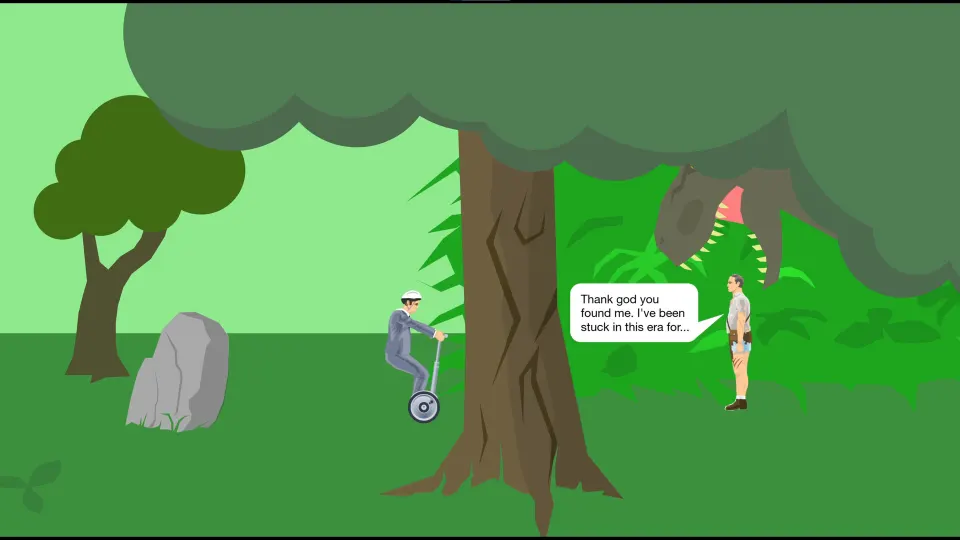
- Choose an available chapter and an early level. Business Guy is a sensible starting point because his personal transporter provides a straightforward introduction to balancing.
- Try the controls before committing to speed. Learn how movement and changes in angle affect the rider.
- Work toward the finish. Treat the first attempt as a chance to identify hazards and safe landing areas.
- Retry with one adjustment. Change your approach speed or timing instead of repeating the same crash.
Learn the touchscreen controls and physics
The mobile app replaces keyboard input with on-screen buttons. Practice movement, balance, and the actions available to your selected character before attempting a difficult obstacle.
| Control or feature | What to learn | Practical use |
|---|---|---|
| On-screen movement buttons | How your vehicle accelerates and changes position | Use brief inputs when approaching an unfamiliar edge |
| Balance controls | How changing your angle affects stability | Prepare for a landing instead of correcting only after impact |
| Character actions | Which actions your selected rider can perform | Test their effect somewhere with room to recover |
| Slow motion | How the app briefly slows the action | Study a difficult collision or narrow timing window |
| On-screen timer | How long the attempt has taken | Compare cleaner runs after you can finish reliably |
The most useful habit is to separate gaining speed from preparing to land. Accelerate when you have room, then focus on your angle as you approach a jump or drop.
Obstacles include spikes, mines, wrecking balls, and harpoons. Some punish direct contact; others make your approach timing important. Pause before an unfamiliar hazard when the terrain allows it, observe what happens, and then commit to a deliberate attempt.
Try these adjustments when you keep failing:
- Overshooting a platform: approach with less speed.
- Tipping during a landing: make smaller balance corrections.
- Hitting a moving obstacle: change when you enter its path.
- Repeating an unclear crash: use slow motion where available to understand the contact.
Pick a character and practice its levels
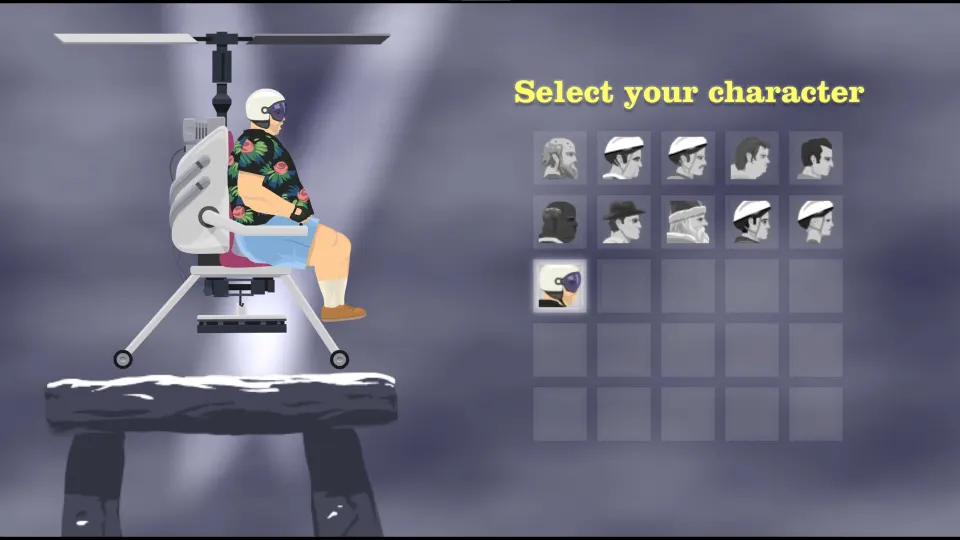
Characters are more than visual choices. Their vehicles create different challenges, and the mobile game groups many built-in levels into character chapters. Staying with one rider for several attempts helps you learn how that vehicle behaves.
The iOS listing names these five playable characters:
| Character | Vehicle or equipment | Suggested practice focus |
|---|---|---|
| Business Guy | Personal transporter | Small balance changes and controlled approaches |
| Irresponsible Dad | Bicycle carrying his son | Keeping the bicycle stable over uneven ground |
| Wheelchair Guy | Jet-powered wheelchair | Managing acceleration and the angle of the chair |
| Effective Shopper | Electric motor cart | Learning how the cart handles bumps and landings |
| Pogo Stick Guy | Pogo stick | Repeating controlled bounces and landing upright |
Choose a rider you enjoy, then repeat an early course until you can predict what your inputs will do.
Do not expect every chapter to contain the same number of levels. The mobile game's characters and courses were added over multiple updates. The App Store advertises more than 60 levels overall, but that total should not be read as an equal allocation to every rider.
Use offline levels, the editor, and walkthroughs
The built-in mobile courses can be played without an internet connection, according to the Happy Wheels Mobile wiki. That makes the app useful for practicing away from Wi-Fi.
| Feature | What it offers | Important distinction |
|---|---|---|
| Built-in levels | Courses available for offline play | Separate from the browser game's community database |
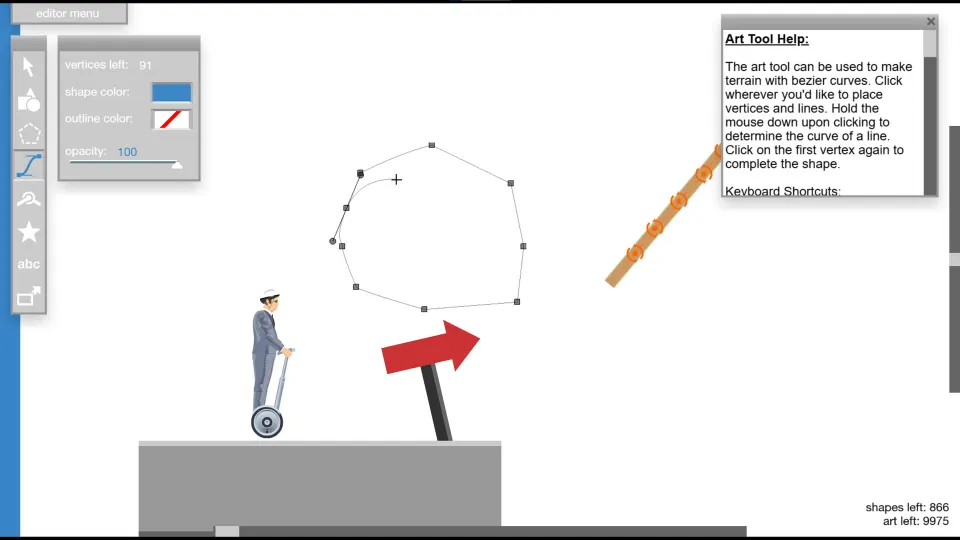
| Level editor | Tools for creating your own obstacle courses | The iOS listing confirms an editor; the mobile editor is simplified |
| Local level saving | Storage for created levels on the device | Saving locally is different from publishing to a public catalog |
| Level sharing | The mobile wiki describes email and AirDrop sharing | AirDrop is an Apple-device sharing method |
| Game Center | Leaderboards advertised for the iOS app | An Apple feature, not an Android service |
If you use the editor, begin with a short experiment: a starting platform, one obstacle, and a landing area. Testing a small course makes it easier to understand why the rider falls or how a change in slope affects movement.
For help with built-in stages, the playmoreinside mobile walkthrough playlist organizes videos by character and level range. It includes Business Guy, Irresponsible Dad, Wheelchair Guy, Effective Shopper, Pogo Stick Guy, and bonus-level videos.
Match both the character and level number before watching. Focus on approach speed, waiting points, and landing angle.
FAQ
How do I play without a keyboard?
If you are learning how to play happy wheels on mobile, install the official app and use its on-screen buttons. Tap Play, select an available character chapter, and start with an early course. The app provides the touchscreen control scheme described for the mobile version.
Can I play in a mobile browser instead?
The developer's December 2020 announcement said the JavaScript version performed well on mobile devices, but lacked on-screen controls at launch. It recommended a Bluetooth keyboard. That is dated guidance, so it should not be treated as proof of the browser's present touchscreen features. The app is the documented touch-control option.
Does the Poki version work on phones?
Poki's Happy Wheels page lists desktop support and describes arrow-key movement and spacebar jumping. It offers 10 classic levels. Use the official mobile app when you need controls designed for a phone's touchscreen.
Can I play every browser community level in the app?
Do not expect the browser's community catalog inside the mobile app. The mobile version has its own built-in courses and editor. The mobile wiki describes local saving and file sharing, while discussing a public level browser as a planned addition rather than an established feature.
Do I need internet access for every attempt?
No. The mobile wiki documents offline play for built-in levels. Download the app first, then use those courses for offline practice. Leaderboards and sharing are separate features, and offline play should not be assumed to remove advertising.
What should I do when a level seems impossible?
Identify the first obstacle that consistently stops you. On the next attempt, change just your speed, balance, or timing at that point. Use slow motion where available, or watch the matching mobile walkthrough. Once that section becomes reliable, apply the same approach to the next hazard.