Start with the core controls
Happy Wheels is much easier once you stop treating every crash as random. The core keys control speed, balance, and survival, letting you guide vehicles through traps instead of simply launching into them.
Most characters share the same movement foundation. Hold the up arrow to move forward, use down to slow down or reverse, and lean with the left and right arrows. Leaning is especially important on hills, ramps, and narrow platforms because it changes how your vehicle lands.
| Key | Standard action | Best use |
|---|---|---|
| Up Arrow | Accelerate forward | Build speed before ramps or climb slopes |
| Down Arrow | Brake, slow down, or reverse | Correct overshoots and approach hazards carefully |
| Left Arrow | Lean backward | Keep the front wheel or body from dipping down |
| Right Arrow | Lean forward | Stabilize landings and push through upward slopes |
| Z | Eject | Escape a broken vehicle or trigger a risky shortcut |
Start cautiously. A full-speed run may be entertaining, but controlled acceleration gives you time to read moving hazards, mines, spikes, and breakable objects.
The default Happy Wheels controls can be changed through the Options menu. If arrow keys feel awkward, remapping movement to keys closer to your preferred hand position can make demanding user levels far more comfortable.
Learn to balance vehicles and ragdolls
Movement is only half the challenge. Your character and vehicle react to physics, so tiny adjustments often work better than holding a key continuously.
When riding a two-wheeled vehicle, lean forward before ascending a short ledge or crossing a bump. Lean backward when descending sharply or when the front wheel begins to pitch down. On long jumps, use brief taps to correct your angle rather than committing to a full lean.
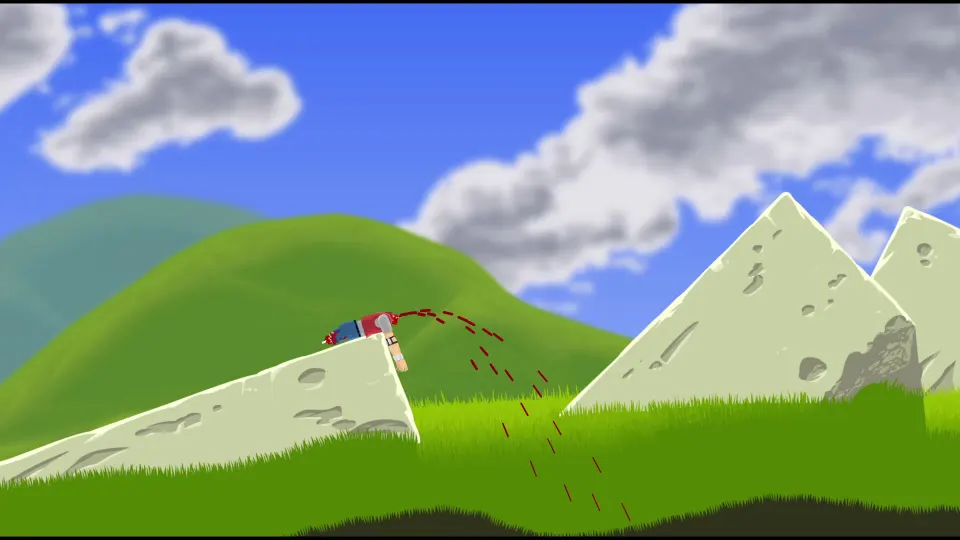
After an ejection, the controls change from driving to ragdoll movement. You can still influence limbs, grab objects, and sometimes crawl, swing, or pull yourself toward the finish.
| Key after ejection | Typical ragdoll effect |
|---|---|
| Up Arrow | Straighten arms and legs |
| Down Arrow | Curl into a ball |
| Left Arrow | Push joints backward or upward, depending on the character |
| Right Arrow | Extend legs and push arms forward |
| Spacebar | Grab nearby objects |
| Shift / Ctrl | Move specific limbs or alter posture on many characters |
Ragdoll recovery matters when your vehicle is destroyed but your character survives. Try to avoid smashing the head or torso, then use the grab action to cling to rails, platforms, or moving objects.
A few practical habits help:
- Brake before unfamiliar drops instead of trying to react after leaving the edge.
- Tap lean keys for landing corrections; holding them can cause a flip.
- Eject only when it creates a real advantage, such as clearing a blocked route.
- Keep trying after losing a limb. Reaching the finish may still be possible.
Use each character’s special action
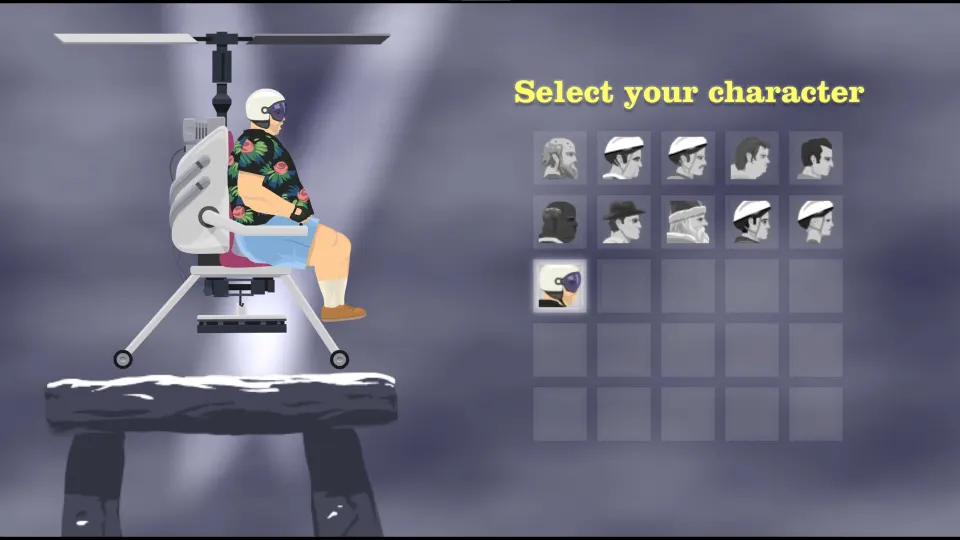
The spacebar, Shift, and Ctrl keys are not identical for every character. Their effects depend on the rider and vehicle selected by the level creator, so check the control display at the bottom of the game screen before starting a difficult run.
| Character | Important special controls | What they do |
|---|---|---|
| Wheelchair Guy | Space, Shift, Ctrl | Fires and rotates the wheelchair jet |
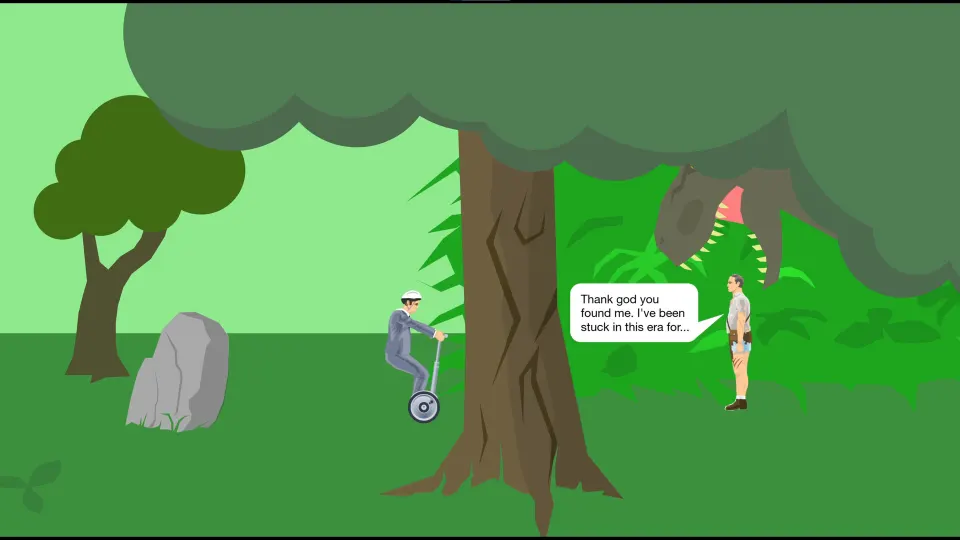
| Segway Guy | Space, Shift, Ctrl | Jumps and changes leg posture |
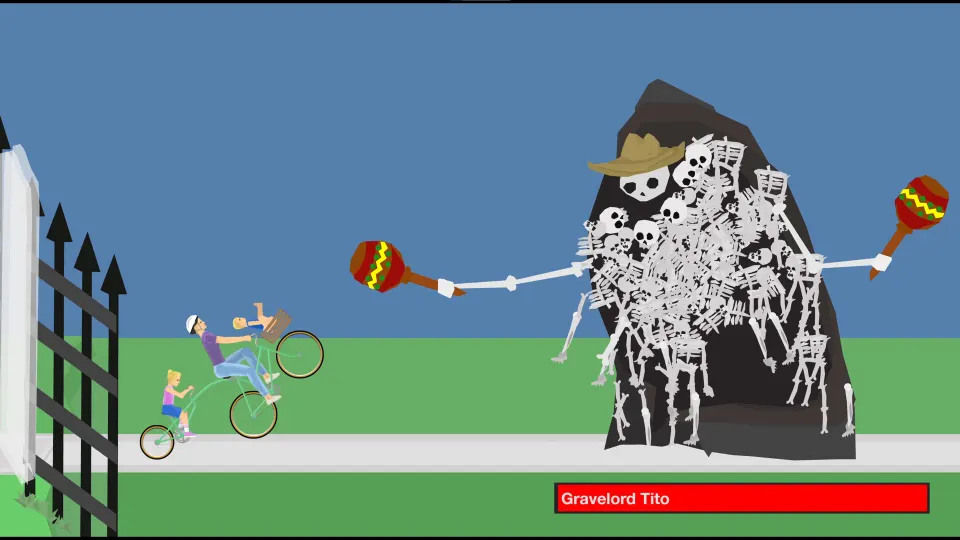
| Irresponsible Dad or Mom | Space, Shift, Ctrl, C | Brakes, ejects riders separately, and changes camera |
| Effective Shopper | Space | Jumps with the grocery scooter |
| Moped Couple | Space, Shift, Ctrl, C | Boosts, brakes, ejects the passenger, and changes camera |
| Lawnmower Man | Space | Jumps while driving the mower |
| Explorer Guy | Space, Shift, Ctrl | Attaches the cart to rails and shifts body weight |
| Santa Claus | Space, Shift, C | Floats, releases elves, and changes camera |
| Pogostick Man | Space, Shift, Ctrl | Charges a bounce and changes posture |
Wheelchair Guy is powerful on levels with large gaps. Rotate the jet with Shift and Ctrl, then use Space to fire it. The thrust can carry you over obstacles, but uncontrolled jet use can spin the chair into spikes or walls.
Segway Guy is more about rhythm. His jump helps him clear low hazards, while posture controls can keep the vehicle stable after a landing. Use him carefully on uneven surfaces; he can tip easily if you hold a lean key too long.
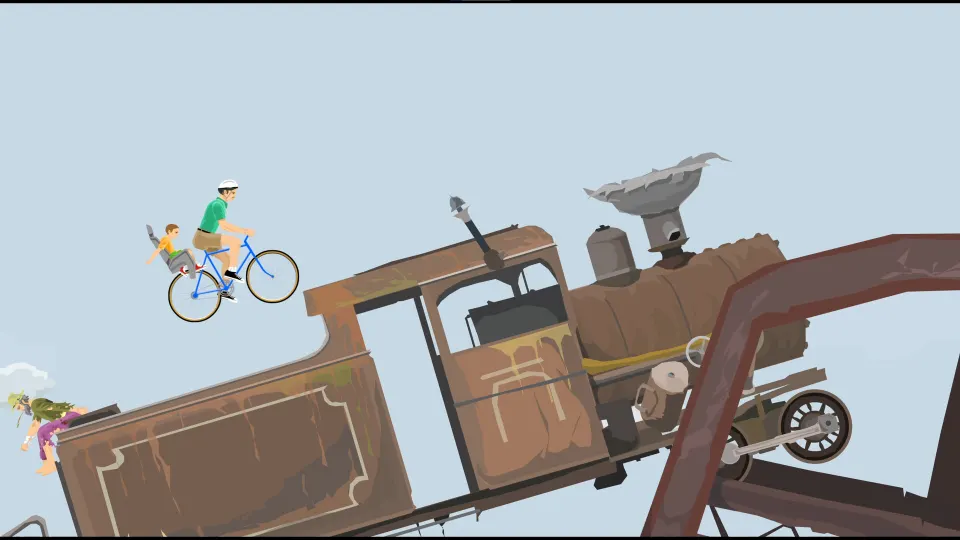
Explorer Guy is designed for rail sections. Hold Space to connect the minecart to rails, then use leaning controls to keep the rider positioned safely. If the cart falls off a rail, reattaching quickly may prevent a fatal crash.
Adjust controls and practice efficiently
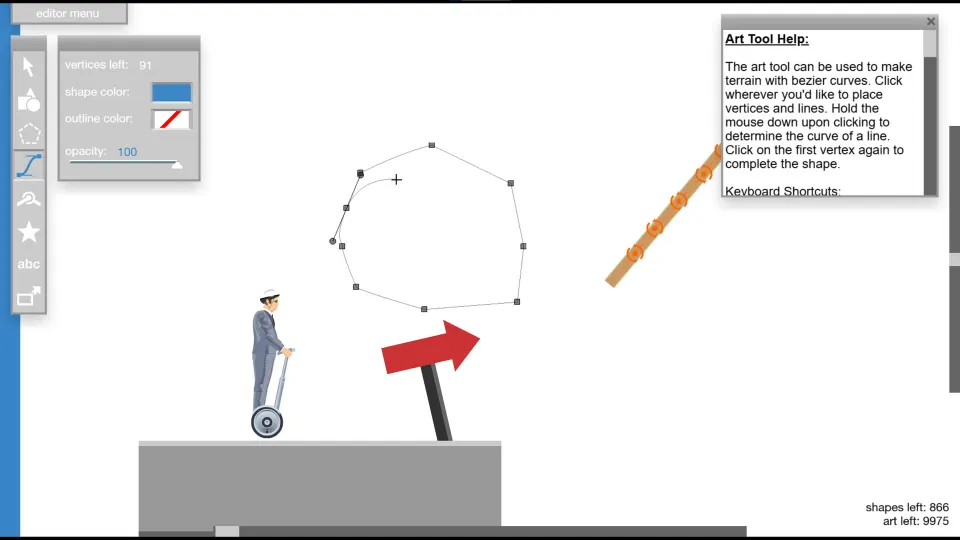
The best control layout is the one you can use without looking down at the keyboard. Open Options and select the control customization setting to assign actions to keys that suit you. This is particularly useful if you prefer WASD-style movement or need special actions closer to your movement hand.
| Situation | Recommended response | Why it helps |
|---|---|---|
| A ramp sends you backward | Lean forward before and during takeoff | Keeps the vehicle from rotating backward |
| Your front wheel dives on a downhill | Lean backward and ease off acceleration | Reduces the chance of a head-first impact |
| A mine or spike blocks the route | Brake and inspect the timing | Many hazards are safer when approached slowly |
| Your vehicle is trapped | Consider ejecting | The ragdoll may fit through a gap or reach a trigger |
| A level feels impossible | Try another character or replay slowly | User-made levels often reward a specific technique |
Practice on short levels before taking on obstacle-heavy challenges. This helps you learn how a character carries momentum, how quickly they reverse, and whether their special action needs a tap or a hold.
Use the pause menu if you need to restart or adjust settings without leaving the level. If visual clutter makes hazards difficult to see, the Options menu also includes graphical settings that can reduce particle effects. Lowering particles can make busy crashes easier to read and may help performance on slower devices.
For the Steam version, controller support can handle standard movement through a D-pad or analog stick. Keyboard controls remain useful for precise character-specific actions, especially when a level requires several special inputs in quick succession.
FAQ
What are the basic happy wheels controls?
Use Up Arrow to accelerate, Down Arrow to brake or reverse, and Left and Right Arrow to lean. Z ejects your character, while Spacebar, Shift, and Ctrl activate abilities that vary by character.
Why do I keep flipping over?
You are likely holding a lean direction for too long or entering ramps too fast. Reduce speed before ramps, then use short lean taps in the air to level the vehicle.
Can I change the keybinds?
Yes. Open the Options menu and choose the control customization option. You can assign the Happy Wheels controls to a layout that feels more natural.
What does Spacebar do?
Spacebar triggers a character-specific action. It can fire Wheelchair Guy’s jet, make Segway Guy jump, boost the Moped Couple, attach Explorer Guy’s cart to rails, or charge Pogostick Man’s bounce.
Should I eject with Z often?
No. Ejection is useful when the vehicle is stuck, damaged, or unable to fit through a route, but it also leaves your character vulnerable. Use it when it gives you a clear path forward.